Text to Speech for Accessibility
Making the web's best writing available to everyone, in audio
Millions of people find reading on screens difficult due to dyslexia, visual impairment, ADHD, or fatigue. speakeasy converts any article URL into clear, natural-sounding audio using advanced AI voices that are far more pleasant than robotic screen readers. Unlike built-in OS accessibility tools, speakeasy is purpose-built for long-form content — it strips away page clutter, preserves article structure, and saves the audio to your iCloud library for repeated listening. Whether you need audio as your primary reading mode or as a supplement, speakeasy provides a consistent, high-quality experience across iPhone and Mac. This guide walks you through everything you need to know, from the basic setup to advanced tips that most users miss. Whether you're new to text-to-speech or looking to optimize your existing workflow, following these steps will help you get the most out of speakeasy and save significant time in the process.
Steps
Install speakeasy and set your preferred voice
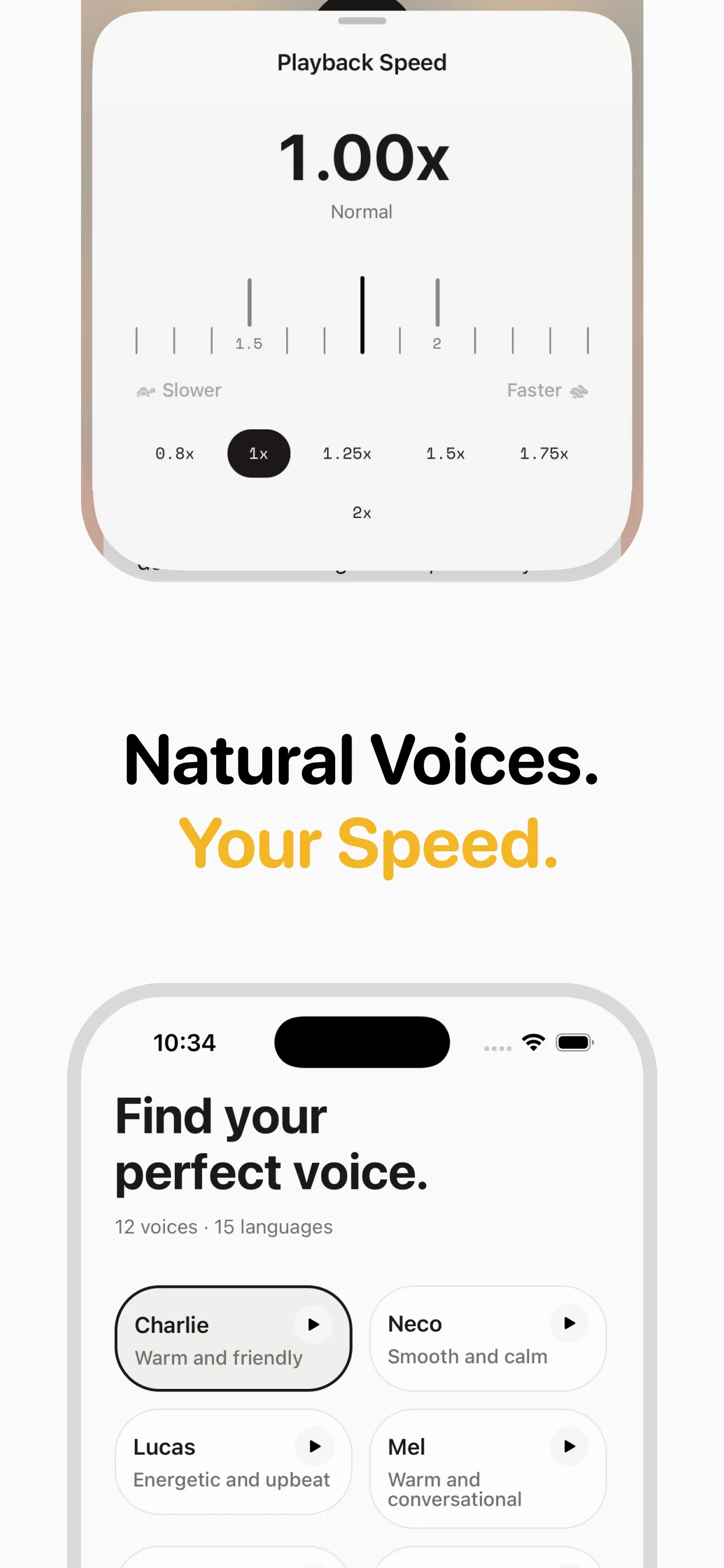
Download speakeasy from the App Store and open Settings. Choose from a range of AI voices and preview each one before committing. Select a voice that feels natural and easy to follow for extended listening sessions.
Share any article directly to speakeasy
Whenever you encounter an article you want to hear rather than read, tap the Share button in Safari and choose speakeasy. The app will handle extraction automatically, so you never need to copy or paste text manually.
Adjust speed and let it play
Start at 0.9x or 1.0x speed for comfortable comprehension. speakeasy remembers your last speed setting. The audio saves to your library so you can pause, resume, and re-listen as many times as needed.
Why this matters
Understanding how to text to speech for accessibility isn't just about following a checklist — it's about fundamentally changing how you consume content. Most people spend 2-3 hours daily reading articles, newsletters, and blog posts on their phones. Converting that reading time to listening time opens up hours of productivity you didn't know you had.
The process is simpler than you might think: Install speakeasy and set your preferred voice → Share any article directly to speakeasy → Adjust speed and let it play. Once you've done it a few times, it becomes second nature, and you'll wonder how you ever managed without it. speakeasy handles the technical complexity behind the scenes, so you can focus on the content rather than the conversion process.
Common mistakes to avoid
When learning to text to speech for accessibility, there are a few pitfalls worth knowing about upfront. First, don't try to convert everything at once — start with a few articles you're genuinely interested in, and build your listening habit gradually. Second, make sure you're using the right voice and speed settings for the type of content you're converting.
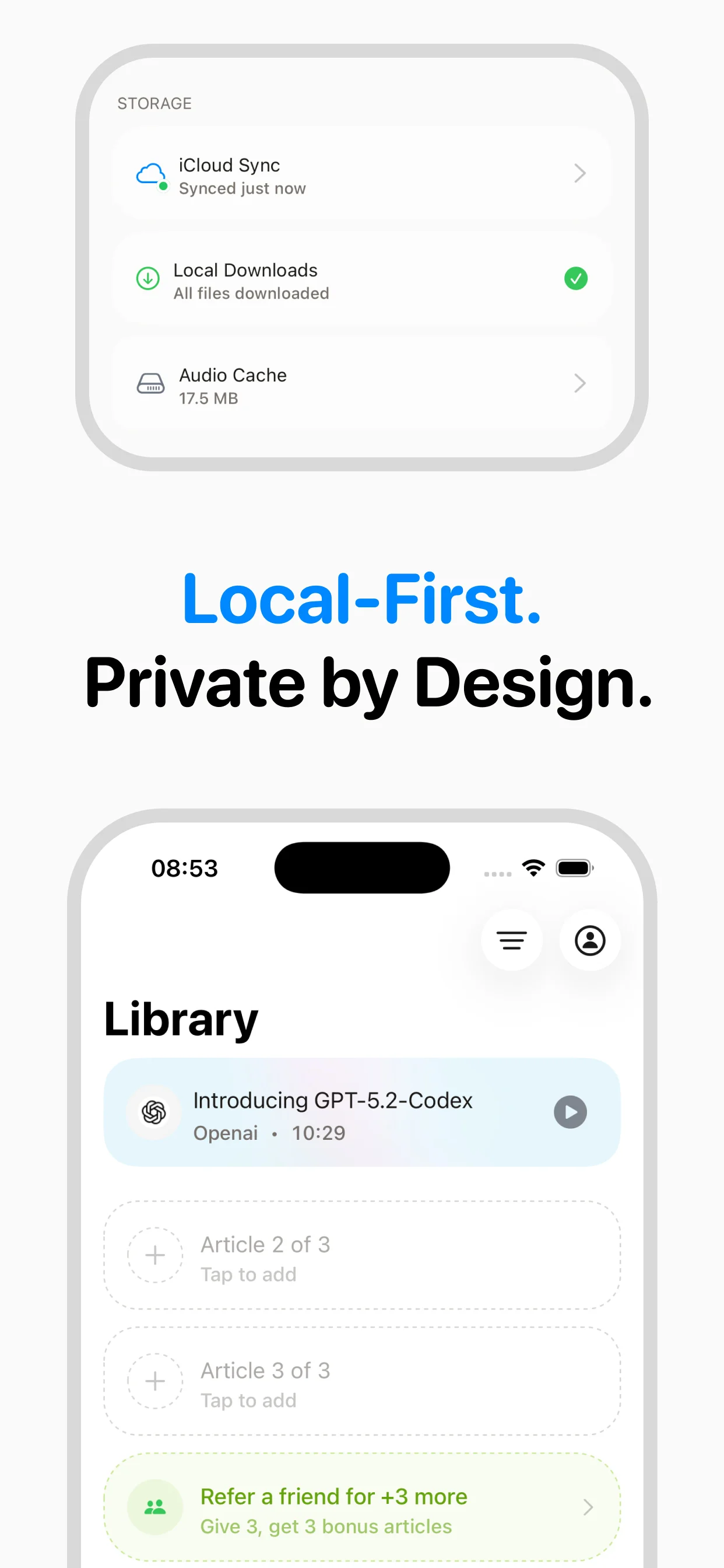
Another common mistake is not taking advantage of speakeasy's iCloud sync. Your audio library syncs automatically between iPhone and Mac, which means you can queue articles on one device and listen on another. This is especially useful for articles you discover on your desktop but want to listen to during your commute.
Advanced tips for power users
Once you've mastered the basics, here are some ways to level up your workflow. Use the iOS share sheet to send articles directly from Safari, Twitter, or any other app to speakeasy — no need to copy-paste URLs. Set up a dedicated listening time each day, and queue articles the night before so your library is ready to go.
Experiment with different playback speeds for different content types: news articles work well at 1.5-2x, while technical or philosophical content benefits from 1.0-1.2x. You can also use speakeasy's voice preview feature to find the perfect voice for each type of content. Many power users maintain separate mental categories — a deep voice for serious analysis, a lighter voice for casual blog posts.
Getting the best results
The quality of your audio depends on several factors that are worth optimizing. speakeasy works best with well-structured articles that have clear paragraphs and headings. Most blog posts, newsletters, and news articles convert beautifully. Extremely visual content (infographics, charts-heavy pieces) may lose some context in audio form, but the text content still converts well.
For the best listening experience, use headphones or earbuds — the nuance in speakeasy's AI voices is more apparent with direct audio delivery. If you're listening through phone speakers, you might miss subtle intonation that makes the experience feel natural. Finally, don't forget to rate and organize articles in your library — this helps you build a personal audio archive you can revisit anytime.
Key takeaways
- The setup process takes less than a minute once you know the steps
- Start with content you're already interested in to build the listening habit
- Use iCloud sync to seamlessly move between iPhone and Mac
- Experiment with playback speed to find your optimal listening pace
- The iOS share sheet is the fastest way to convert articles
Tips
- Preview several voices in Settings before choosing — some voices are clearer for certain accents or content types.
- Slower playback speeds (0.8x–1.0x) improve comprehension for users with auditory processing challenges.
- speakeasy works alongside iOS VoiceOver and does not conflict with other accessibility settings.
Frequently asked questions

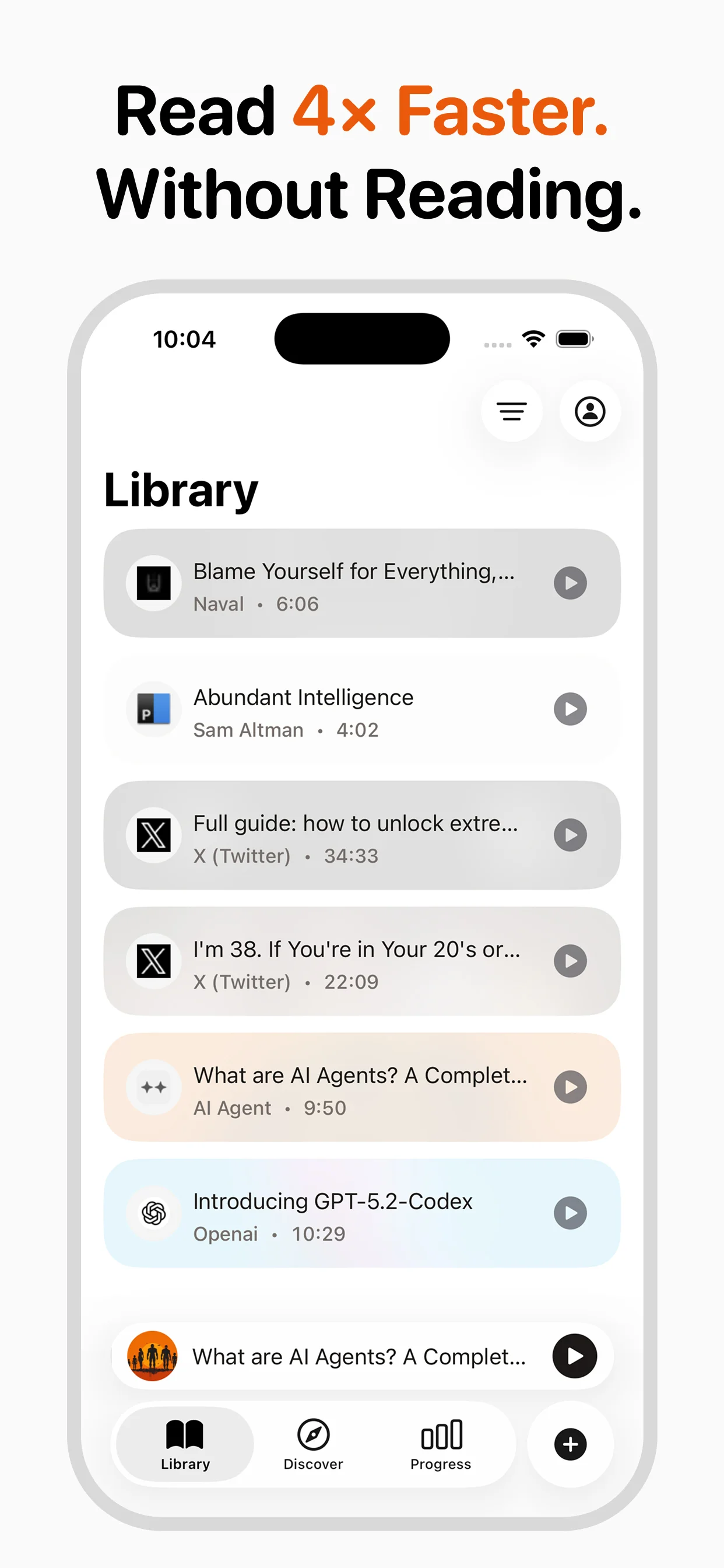
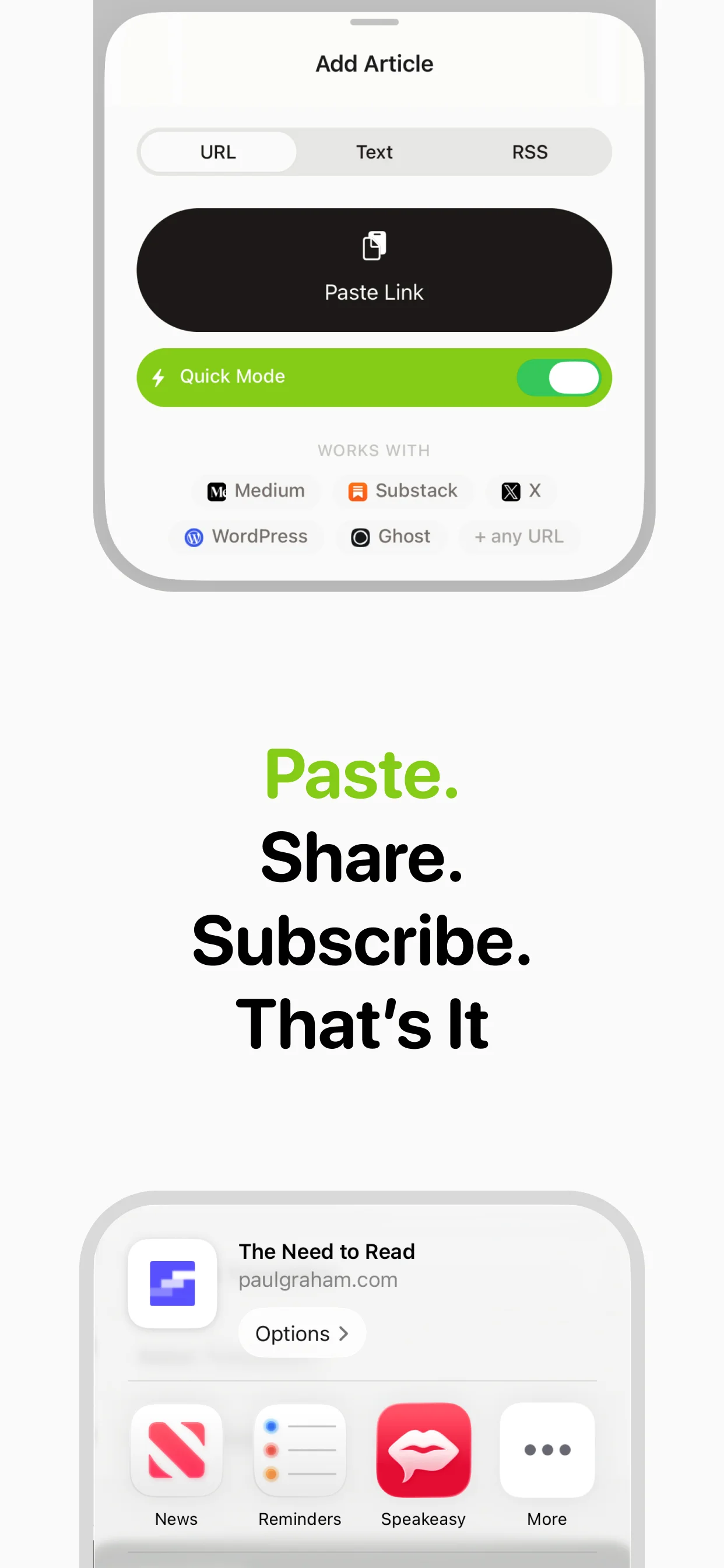
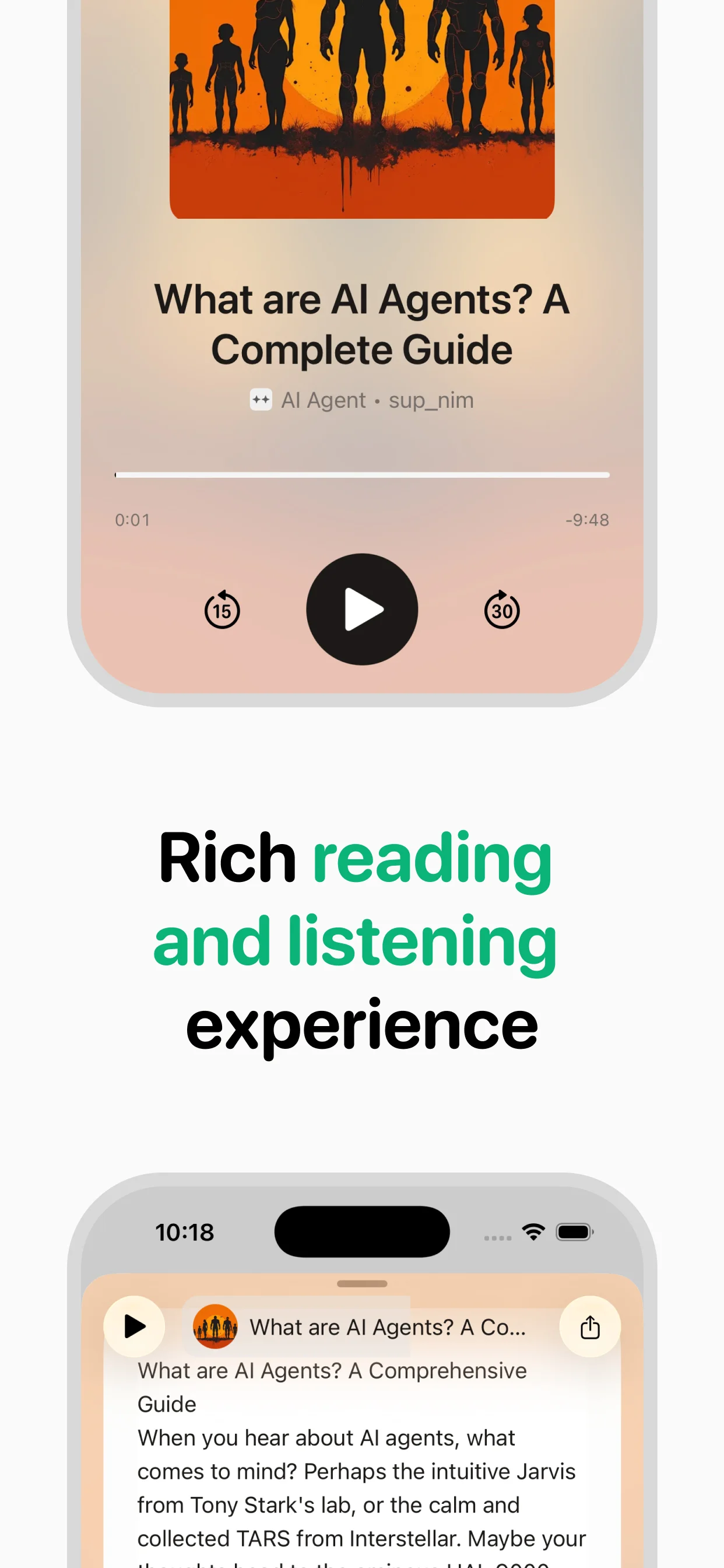
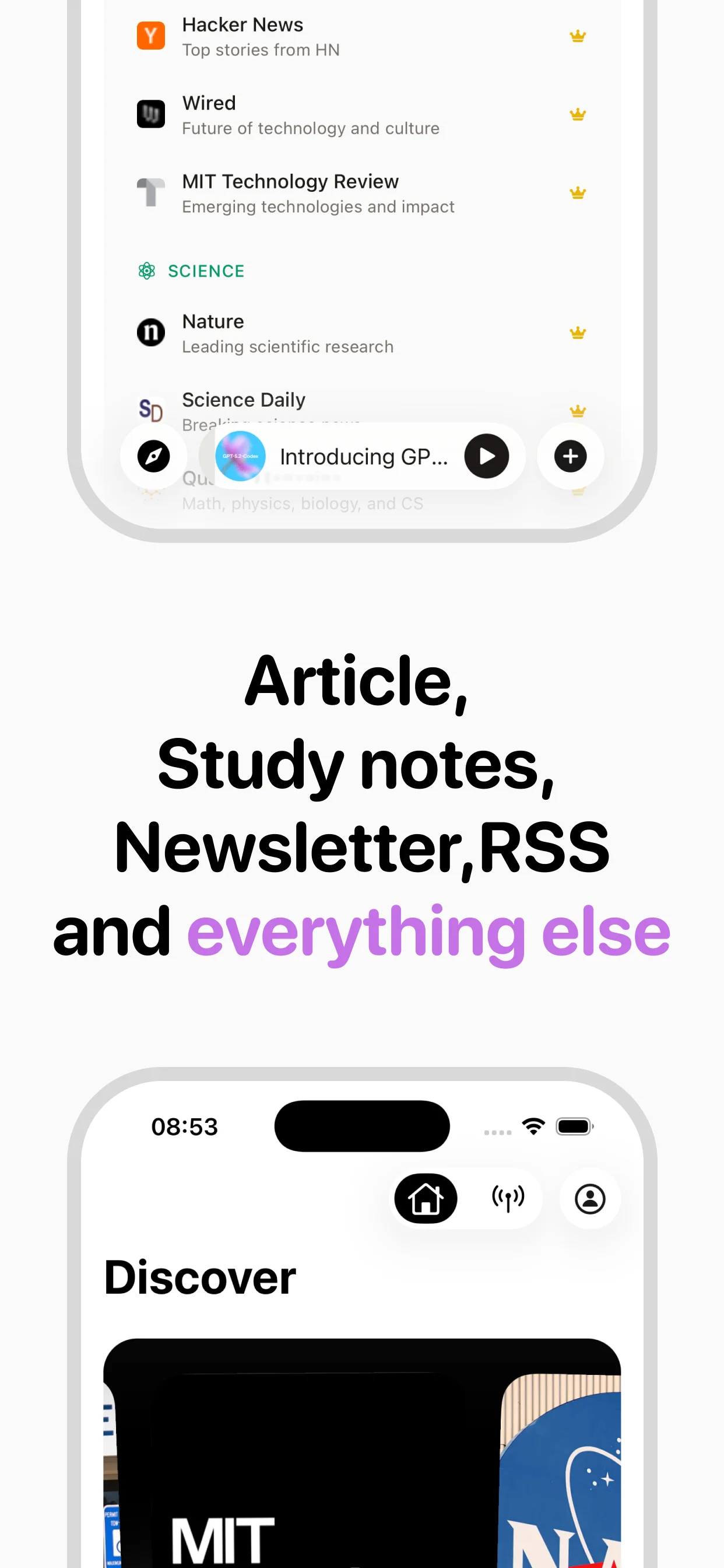
Turn any article into natural-sounding audio. Paste a link, press play, and stay informed while you move.
Coming soon on Android